
If you’ve ever managed a busy SharePoint list or document library, you know the frustration of jumping between items, the Automate menu, and external tools just to send a quick approval, update a status, or fire off a Teams chat. Those extra clicks add up fast when you’re handling dozens of items a day. That’s exactly why I got excited when Microsoft announced the new Quick Steps column type in SharePoint. It brings lightweight, no-code automation directly into the list view.
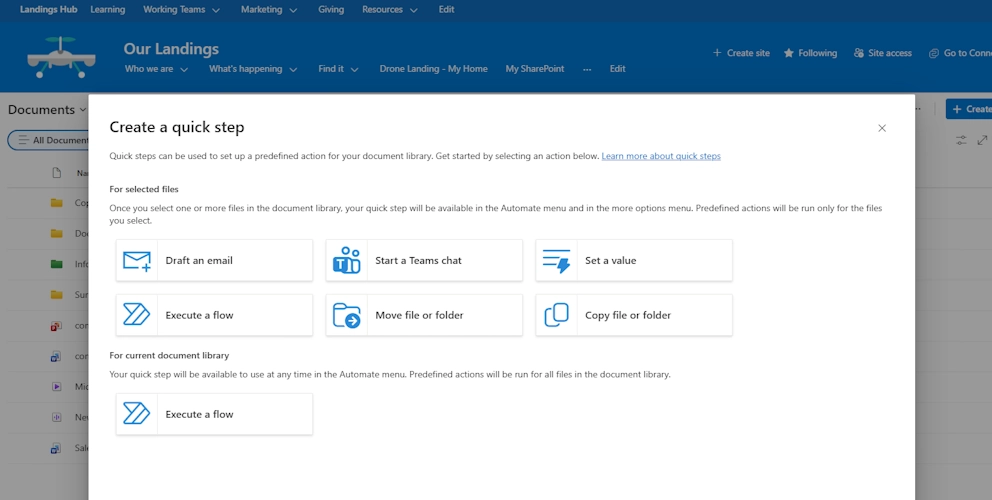
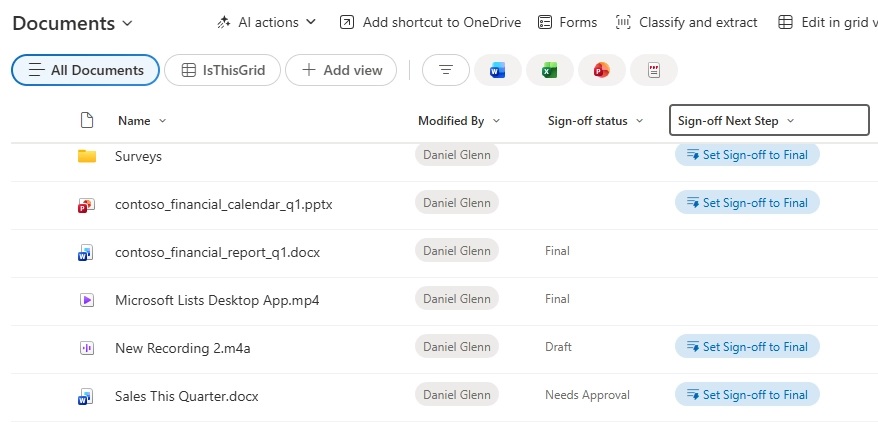
This update turns Quick Steps into an actual column you can add to any list or library, just like you would a choice or person column. Once added, it displays custom action buttons right next to every item, letting users trigger email drafts, Teams chats, column updates, approvals, or even Power Automate flows with a single click. The best part? It respects all your existing permissions, requires zero JSON formatting, and uses the same friendly sentence-builder experience you already know from SharePoint rules. For SharePoint site owners and heavy list users, this is a genuine productivity win.
A New “Quick Steps” Column in SharePoint & Microsoft Lists: A Simpler Way to Automate Actions
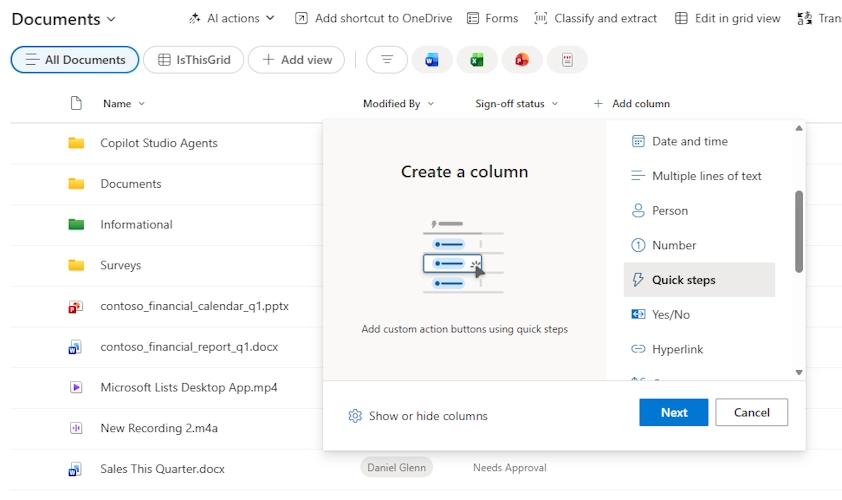
Adding the column couldn’t be simpler. Open your list or library, click + Add column, select Quick steps, give the column a name, and start configuring your actions. You can add up to 15 different buttons per column, customize their text and color, and even set conditions so they only appear when certain metadata matches. Actions include drafting an email (pre-filled with item details), starting a Teams chat with people listed in the item, setting a field value like “Approved,” or running a flow. Once saved, the buttons appear inline for every user who has access with no extra training required.
I can already see this saving hours in the document libraries I help clients manage. Imagine a contract review list where team members simply click “Request Approval” or “Mark as Reviewed” without ever leaving the view. Or a support ticket list where agents update status and notify the requester in one motion. It builds on the earlier Quick Steps experience but makes it far more visible and discoverable right in the data itself. No more hunting through menus or context-switching to Power Automate.
Final Thoughts
This new column type is enabled by default and continues Microsoft’s push to make SharePoint feel more modern and app-like. Go try it today; test in a non-production list first, of course! I’d love to hear how you’re using it or if you run into any early rollout quirks. As always, happy automating!
