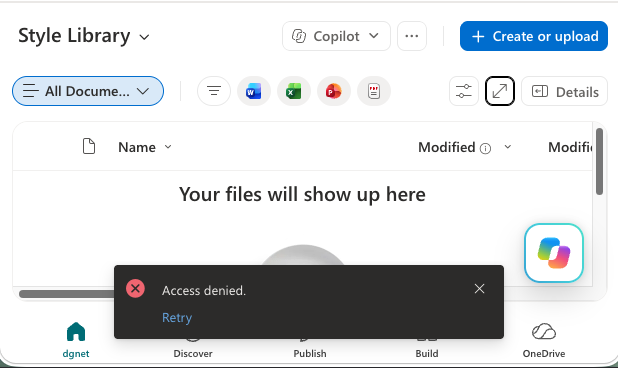
Recently I was helping troubleshoot an issue in SharePoint Online where a site owner needed to delete files in the Style Library but was unable to upload, modify, or delete anything. So what could cause a site admin to get the error message Access Denied in Style Library? At first glance it looked like a permissions problem. The user had full control of the site, could work everywhere else without issue, and even had access to the Style Library itself. I even looked at Microsoft Purview to see if it was causing the issue. The real culprit turned out to be a setting that catches many SharePoint administrators off guard: custom scripting had been disabled for the site.
Access Denied in Style Library – The Why
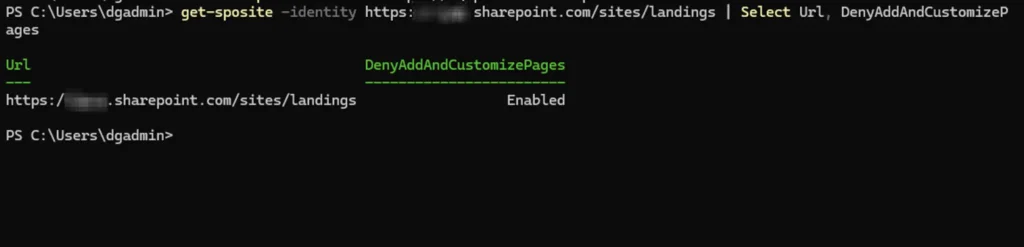
In SharePoint Online, Microsoft’s modern approach favors supported customization methods such as SharePoint Framework solutions rather than direct customization through libraries like the Style Library. When custom scripting is disabled, SharePoint prevents changes to assets stored in locations commonly used for custom code. As a result, even users with significant permissions may find they cannot upload or delete files in the Style Library. A quick way to check the setting is with the SharePoint Online Management Shell:
Connect-SPOService -Url https://EXAMPLE-admin.sharepoint.com
Get-SPOSite -Identity https://EXAMPLE.sharepoint.com/sites/landings |
Select Url, DenyAddAndCustomizePages
Enable Custom Scripting
If the DenyAddAndCustomizePages value is enabled, you’ll need to temporarily allow custom scripting before making changes in the library. Once connected to SharePoint Online, run the following command:
Set-SPOSite -Identity https://EXAMPLE.sharepoint.com/sites/landings `
-DenyAddAndCustomizePages 0
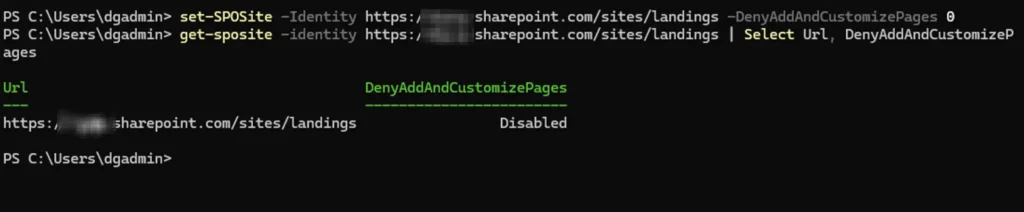
After the change has propagated, you should be able to upload, edit, or remove files from the Style Library as needed. Keep in mind that it may take some time before the setting becomes active across the service. You can check to see if the setting has taken affect by again running the command:
Get-SPOSite -Identity https://EXAMPLE.sharepoint.com/sites/landings |
Select Url, DenyAddAndCustomizePages
If you still have the Access Denied message up on the page, you can simply click the Retry link at the bottom of the message.

Clean Up
Once you have finished with the required file updates in the library, I recommend returning the site to its previous state. Allowing custom scripting longer than necessary increases the potential for unmanaged customizations and makes it harder to maintain a modern SharePoint environment. To disable custom scripting again, run:
Set-SPOSite -Identity https://EXAMPLE.sharepoint.com/sites/landings `
-DenyAddAndCustomizePages 1
This approach lets you make the required change while keeping the site aligned with Microsoft’s recommended security and governance practices. If you encounter a Style Library that appears to have a permissions issue, checking the custom scripting setting should be one of the first troubleshooting steps you take. Learn more from the Microsoft Learn site Allow or prevent custom script.
